Route your branded mail back to 365 for final delivery
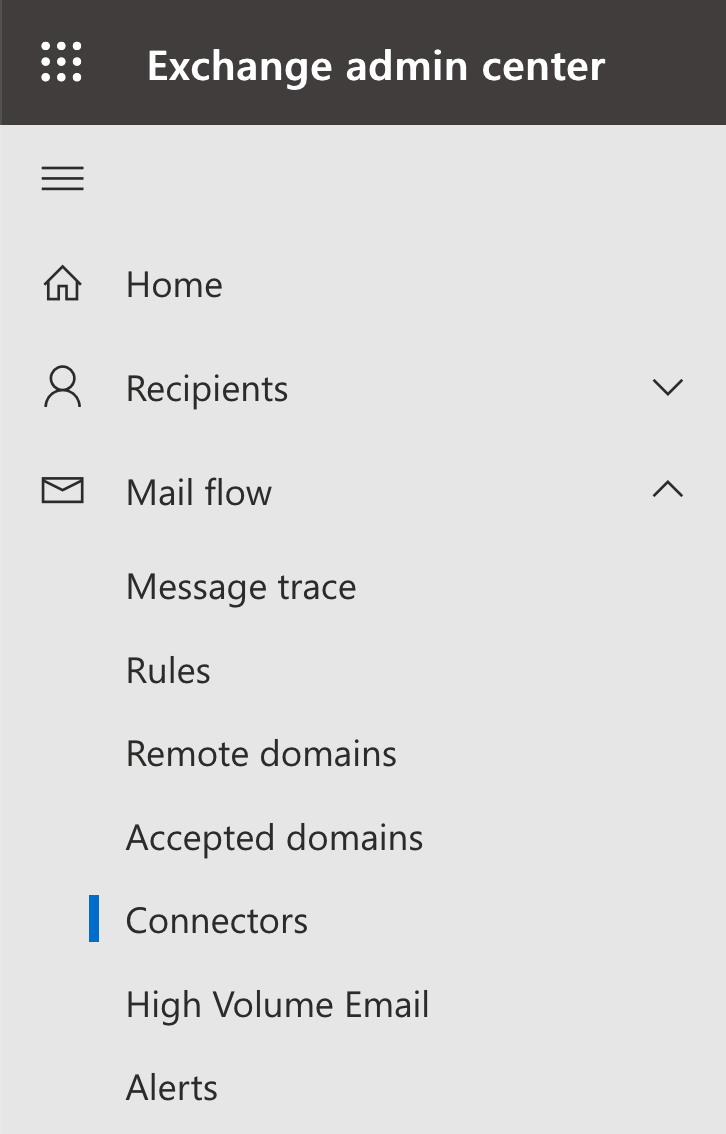
In order to setup this type of routing an administrator will need to create an inbound connector in the Exchange Admin Center. Navigate to Mail Flow and select Connectors.
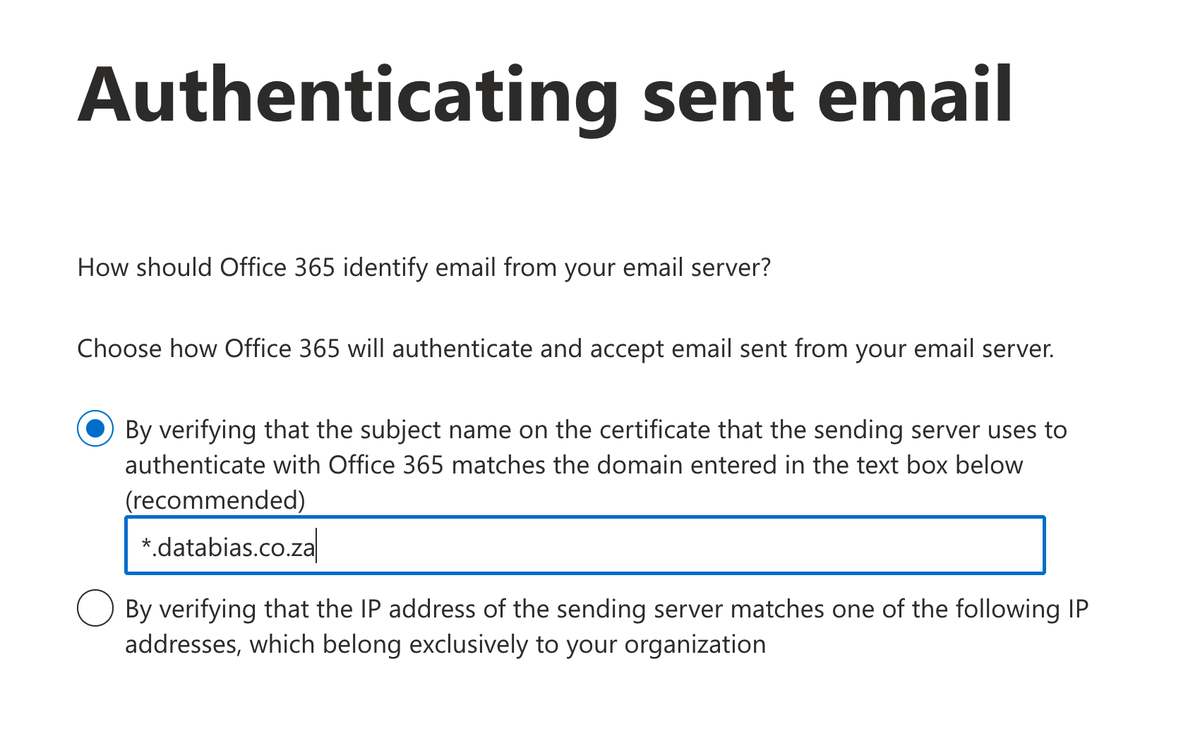
Click Add a Connector and specify a connection from Your organization's email server and click Next. Name the connector (ie. Inbound from Databias) and click Next. In the following screen specify *.databias.co.za as the subject name on the certificate that the sending server user, as per the image below.
Review and create the connector and you are done with the 365 setup. The final step is to login to Databias' Dcentral and activate the routing under your verified domain settings on the Routing tab and click Save.
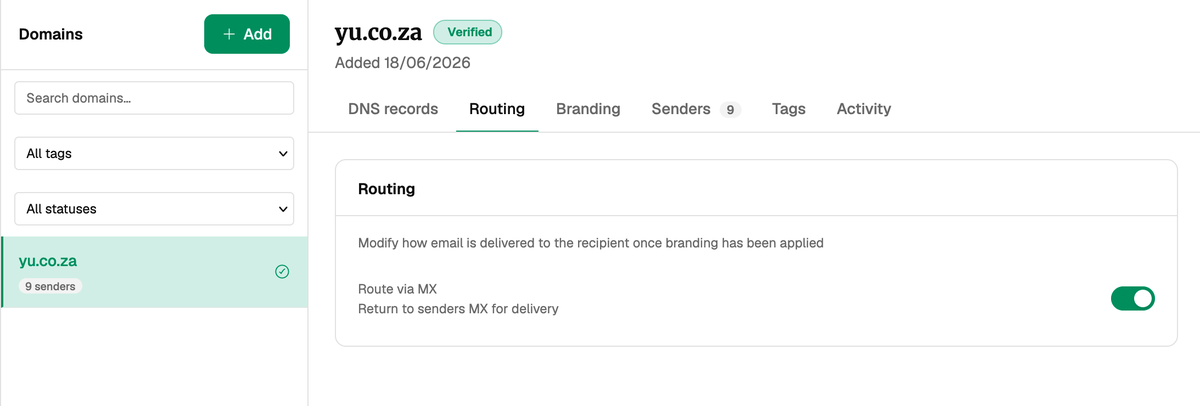
Once active your domain's email will route back to your 365 tenant (the DNS MX record) and be delivered to the recipient by Microsoft 365.